
This is bold, this is italic, this is underlined and this was $500 $420.
Editor handbook
Every button and option of the blog editor — with real screenshots, live examples of how it looks on the blog, and step-by-steps. Search for what you want to do, or start with the legend.
🗺️Legend — every button
Click a row to jump to its guide.
Text toolbar (select text)BIUSBold · italic · underline · strikeSize ▾Text sizeA ▾Text colorabHighlight</>Code stylex²x₂Super- / subscript🔗 LinkUnlinkAdd / remove linkTxClear formatting
Block toolbar (hover a block)↑↓Move blockParagraph ▾Change block type≡Alignment+Insert block below✕Delete block+Row+Col−Row−ColTable rows / columns+Q−QFAQ questions+Step−StepSteps
Start here
🧭The editor at a glance
After you upload (or click ✏️ Write it right here) you get two columns: the left panel with all settings and checks, and the live preview on the right. The preview is the editor — you click into it and type, exactly like on the live blog.
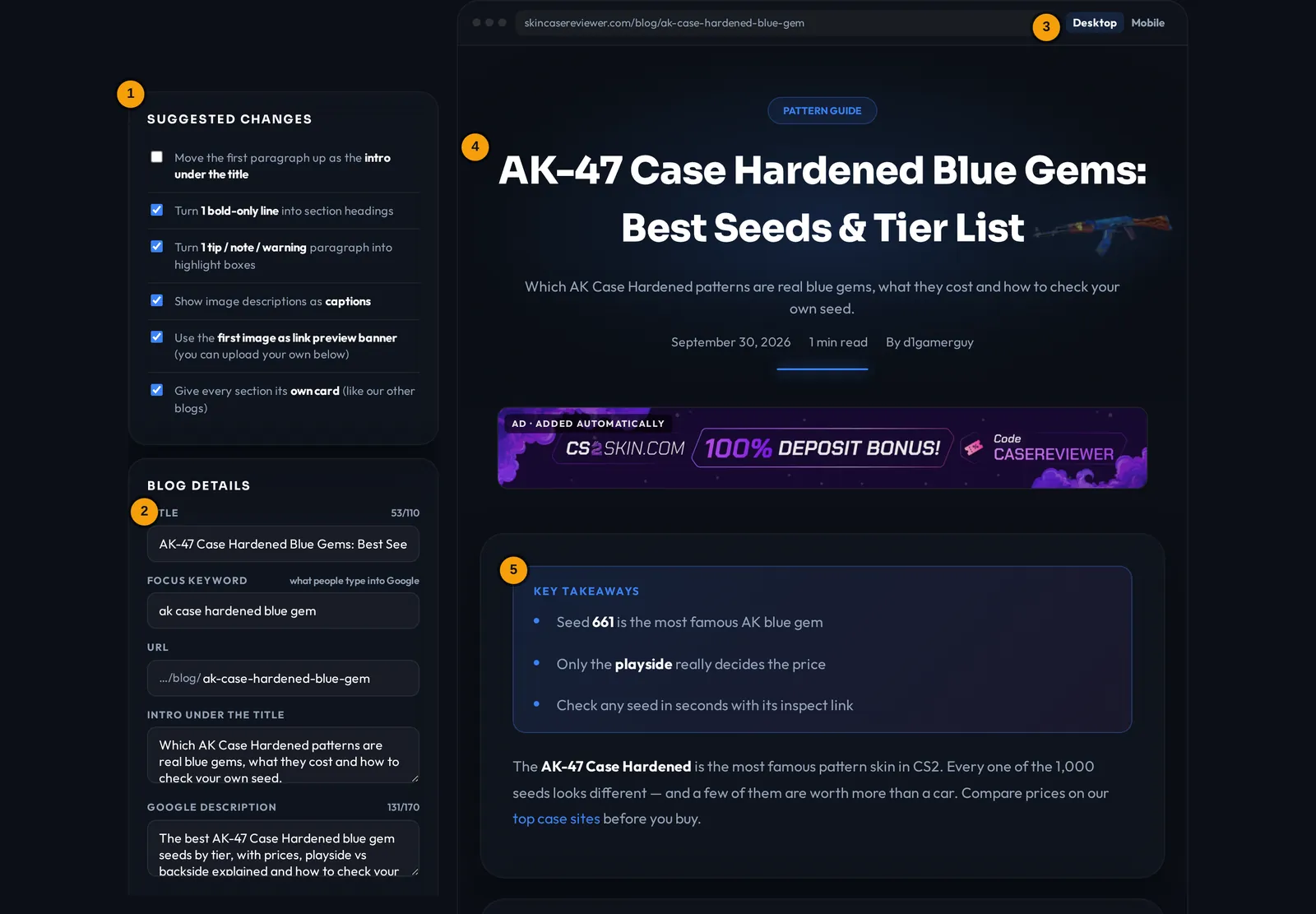
- Suggested changes — quick fixes we detected in your file. More ↓
- Blog details — title, keyword, URL, Google text, author. More ↓
- Desktop / Mobile — switch how the preview looks. More ↓
- Title & intro — click them in the preview and type.
- Blocks — every paragraph, heading, image, table… is a block with its own toolbar. More ↓
💡 Everything saves automatically in your browser. Closed the tab? Come back to /earn and click Continue editing (kept 14 days, same browser).
📄Get your text in (upload or write)
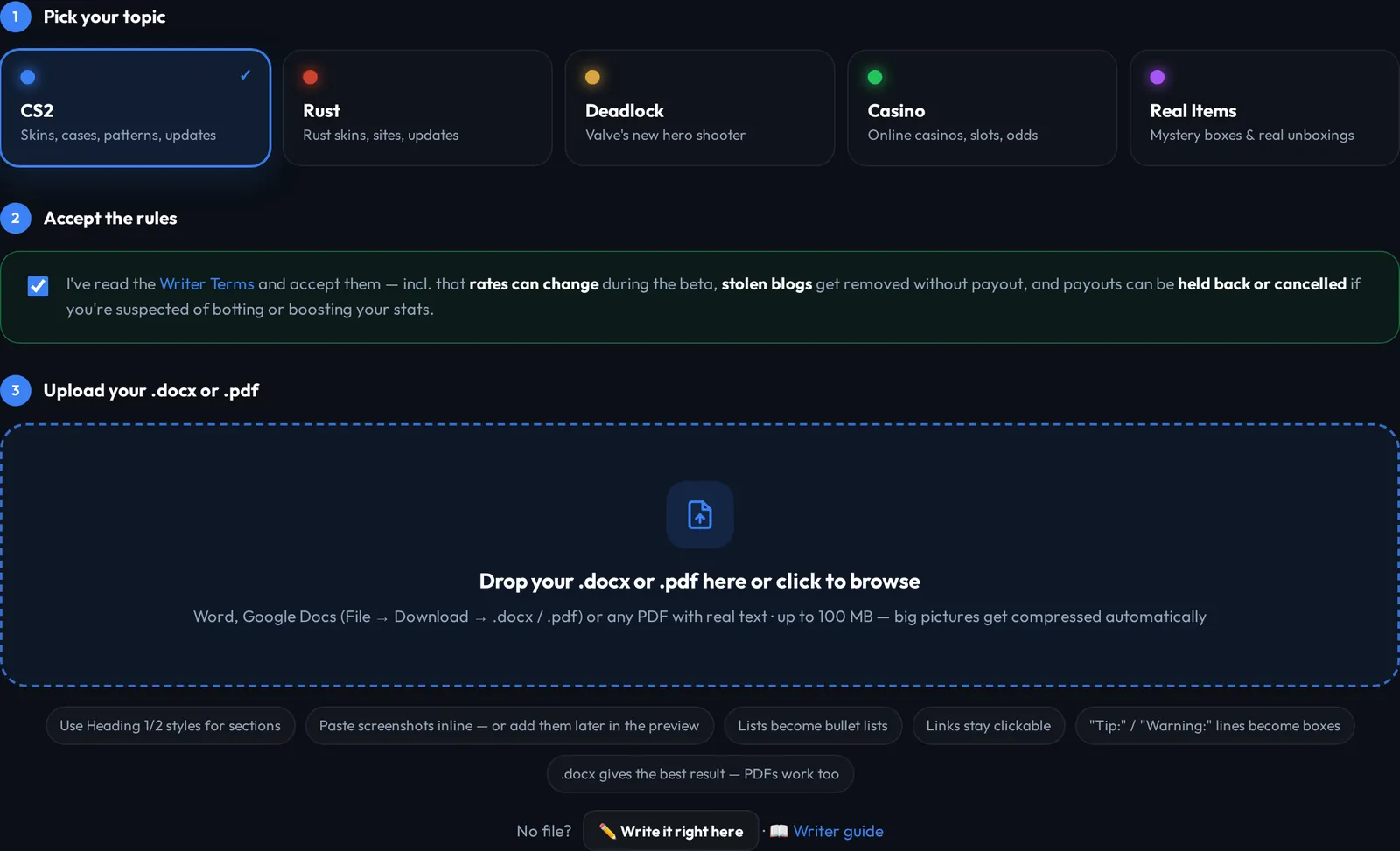
- Pick your topic (CS2, Rust, Deadlock, Casino, Real Items)
- Tick the Writer Terms box — the upload box unlocks
- Drop your .docx or .pdf into the box — or click ✏️ Write it right here to start from an empty blog
- The editor opens with your blog in it
| File | What comes over |
|---|---|
| Word .docx | Best. Headings, bold/italic/underline, lists, links, tables and pictures. Google Docs: File → Download → Microsoft Word. |
| Text, headings, lists and pictures. Tables become plain text. Scans / photos of text don't work. | |
| Write here | Starts with a heading + paragraph — build the rest with +. |
💡 In Word use the Heading 1 / Heading 2 styles for your section titles — then they come in as real headings automatically.
✨Suggested changes
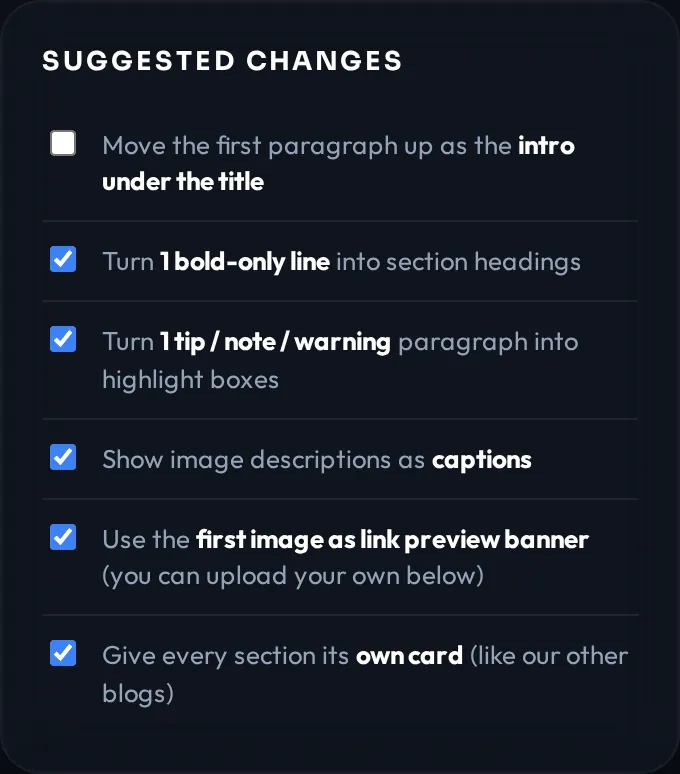
Right after an upload we look at your file and suggest quick fixes. Tick = on, untick = off.
| Suggestion | What it does |
|---|---|
| Use … as title | First big line becomes the blog title. |
| Move first paragraph up | Uses it as the intro under the title. |
| Bold-only lines → headings | "Tier 1:" style lines become real section headings. |
| Tip / warning → boxes | Lines starting with Tip:, Note:, Warning: become coloured boxes. |
| Split long paragraphs | Cuts walls of text into readable pieces. |
| Captions | Image descriptions show under the images. |
| Own card per section | Every heading starts a new card, like our other blogs. |
⚠️ Changing a suggestion re-applies all of them and resets manual edits in the preview. Set them first, then edit.
Formatting text
🅱️The text toolbar
Select the words with your mouse (click + drag, or double-click one word) — a toolbar pops up right above it. Everything in this chapter starts like that.

| Button | Does |
|---|---|
| B I U | Bold, italic, underline, strikethrough |
| Size ▾ | Small / Normal / Large / Huge |
| A ▾ | Text color |
| ab | Yellow highlight (marker) |
| </> | Code style — great for item names and seeds |
| x² x₂ | Superscript / subscript |
| 🔗 Link Unlink | Add / remove a link |
| Tx | Remove all formatting from the selection (links stay) |
💡 Headings can't be formatted — they always look the same on the live blog. The toolbar only shows up in text blocks, lists, boxes, tables, FAQ answers and step texts.
BBold, italic, underline, strikethrough
- Select the words with your mouse (click + drag, or double-click one word)
- Click B, I, U or
S— faster: Ctrl+B Ctrl+I Ctrl+U - Click the same button again to remove it (it's highlighted while active)
Live example — this is exactly how it looks on the blog
💡 Use bold for the key words of a sentence so skimmers get it — not for whole paragraphs.
AaText size
- Select the words with your mouse (click + drag, or double-click one word)
- Click Size ▾
- Pick Small, Large or Huge — Normal puts it back

Live example — this is exactly how it looks on the blog
Small text for side notes. Normal text. Large text to stand out. Huge for one big number: $1,000,000
⚠️ Big text is not a heading for Google. For section titles use a real Heading.
🎨Text color
- Select the words with your mouse (click + drag, or double-click one word)
- Click A ▾
- Pick a color dot — the first (half grey) dot = Default

Live example — this is exactly how it looks on the blog
White · Blue · Gold · Green · Red · Purple · Grey
Profit: +$120 · Loss: −$80
💡 Only 8 colors on purpose — every blog stays in our site style. Green/red are perfect for wins/losses.
🖍️Highlight, code style, superscript
- Select the words with your mouse (click + drag, or double-click one word)
- ab = yellow marker, </> = code style, x² / x₂ = up / down
- Click again to remove
Live example — this is exactly how it looks on the blog
The most important sentence of your blog.
Search for AK-47 | Case Hardened with seed 661.
Chances: 1 in 106 · CO2
🔗Links (and our link search)
- Select the words with your mouse (click + drag, or double-click one word) — the words that should be clickable
- Click 🔗 Link or press Ctrl+K
- Our pages: just type a name like csgoroll, case battles or blue gem — pick a page from the list (↓ Enter works too)
- Other sites: paste the full link (https://…) and press Enter
- Remove: click into the link, select it → Unlink
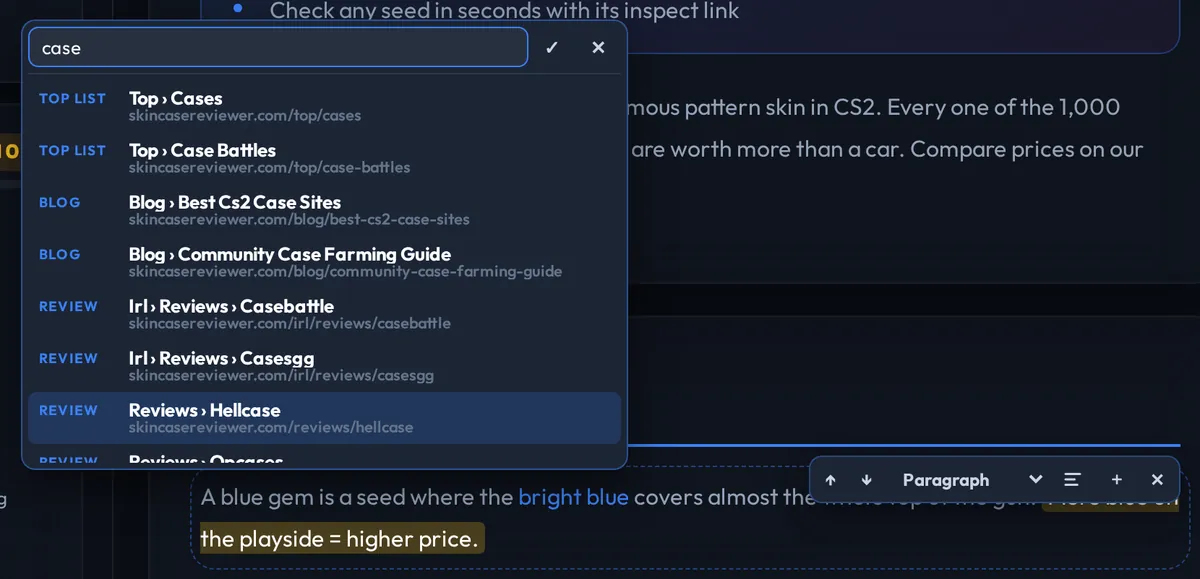
Live example — this is exactly how it looks on the blog
Compare prices on our top case sites before you buy — or read the Hellcase review first.
💡 Link 2+ of our reviews / guides — we pick blogs that do first, and it helps Google. Links to other sites are fine but get marked "nofollow" automatically. No ref codes or affiliate links.
🧽Remove formatting
- Select the words with your mouse (click + drag, or double-click one word)
- Click Tx — bold, colors, sizes, highlight etc. are gone (links stay)
- Only a part? Select just that part
📋Copy & paste from Word / Google Docs
Pasting keeps bold, italic, underline, strikethrough and links — everything else (fonts, colors, sizes from other sites) is removed so your blog stays clean. In headings only plain text is pasted.
Blocks
🧱The block toolbar
Every piece of your blog — paragraph, heading, image, table… — is a block. Hover the block (tap it on a phone) — its toolbar appears top right.

| Button | Does |
|---|---|
| ↑ ↓ | Move the block one spot up / down |
| Paragraph ▾ | Change the block type: Paragraph, Heading, Subheading, Bullet list, Numbered list, Quote, Tip box, Warning box |
| ≡ | Alignment — each click: left → center → right |
| + | Insert a new block below (the big menu) |
| ✕ | Delete the block |
| +Row +Col … | Extra buttons for tables, FAQ and step-by-step blocks |
💡 Deleted something by accident? ↶ Undo in the left panel — it goes back many steps.
➕Insert a new block
- Hover the block (tap it on a phone) — its toolbar appears top right, then click + — the new block lands below it
- Pick what you need from the menu
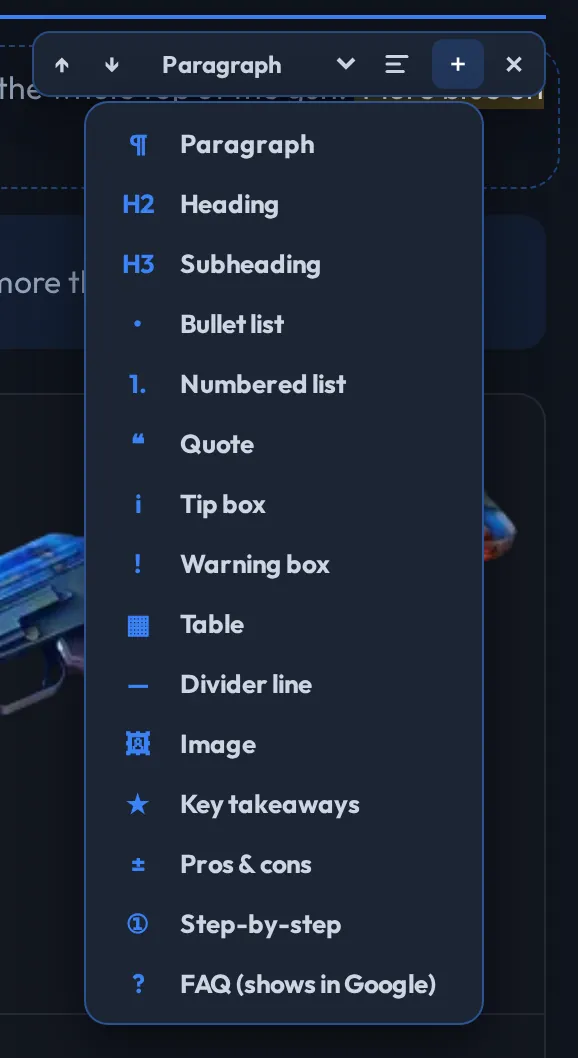
Also at the very bottom of the preview:

+ New section = heading + paragraph in a new card · More blocks… opens the same + menu.
↵Enter, line breaks & joining
| Key | What happens |
|---|---|
| Enter | New paragraph — everything after the cursor moves into a new block below. At the end of a heading / box you get a normal paragraph. |
| Shift+Enter | Line break inside the same block (good for addresses, short lines in a tip box) |
| Backspace at the start | Joins this paragraph with the block above |
| Enter in a list | Next bullet point |
≡Center or right-align
- Hover the block (tap it on a phone) — its toolbar appears top right
- Click ≡ — left → center → right → left
- Works for paragraphs, headings, quotes, tip & warning boxes
Live example — this is exactly how it looks on the blog
Centered — nice for a short closing line.
— right-aligned, e.g. a signature
HHeadings & subheadings
- New: Hover the block (tap it on a phone) — its toolbar appears top right, then click + — the new block lands below it → Heading — or + New section at the bottom
- Turn existing text into a heading: hover it → Paragraph ▾ → Heading
- Use Subheading for parts inside a section
Live example — this is exactly how it looks on the blog
Blue gem tier list
Every section starts with a heading like this — it also shows up in the table of contents.
Tier 1
Subheadings split a section into parts.
⚠️ Bold text is not a heading. Google only sees real headings — the SEO checklist finds fake ones and fixes them with one click (Make headings).
•Bullet & numbered lists
- New: Hover the block (tap it on a phone) — its toolbar appears top right, then click + — the new block lands below it → Bullet list or Numbered list
- Type, Enter for the next point
- Already have lines of text? Hover → Paragraph ▾ → Bullet list — every line becomes a point
- Long "a, b, c, d, e…" list in one paragraph? The SEO checklist offers Make list
Bullet list
- Fast automated trades
- Large selection of skins
- Snipe low float skins
Numbered list
- Open the inspect link
- Check the paint seed
- Compare with the tier list
💬Tip box, warning box, quote
- New: Hover the block (tap it on a phone) — its toolbar appears top right, then click + — the new block lands below it → Tip box, Warning box or Quote
- Or turn a paragraph into one: hover → Paragraph ▾
- Lines starting with "Tip:" or "Warning:" in your file become boxes automatically
Live example — this is exactly how it looks on the blog
Tip: the side you see in-game (playside) matters way more than the backside.
Warning: never trust a seller's screenshots — inspect the skin yourself.
The 661 is the Mona Lisa of CS2 skins.
—Divider line
- Hover the block (tap it on a phone) — its toolbar appears top right, then click + — the new block lands below it → Divider line
Live example — this is exactly how it looks on the blog
Part one ends here.
A thin line separates two parts without a new heading.
▦Tables
- Hover the block (tap it on a phone) — its toolbar appears top right, then click + — the new block lands below it → Table — you get 3 × 3 cells
- Click a cell and type. The first row is the header
- Click a cell, then +Row (adds below it) / +Col (adds right of it)
- −Row / −Col deletes the row / column of the cell you clicked last
- Max 8 columns — text formatting and links work inside cells
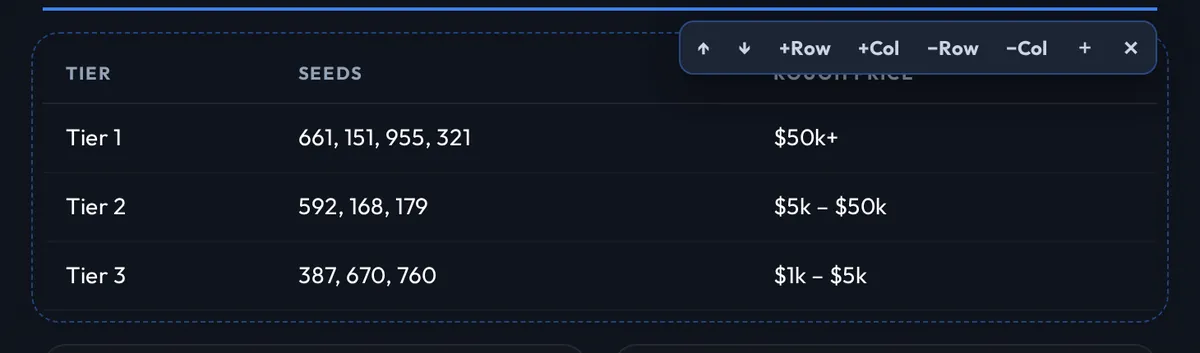
Live example — this is exactly how it looks on the blog
| Tier | Seeds | Rough price |
|---|---|---|
| Tier 1 | 661, 151, 955 | $50k+ |
| Tier 2 | 592, 168, 179 | $5k – $50k |
💡 Tiers, prices, comparisons, pros per site → table. Way easier to read than a long list, and Google loves them.
🖼Images
- Hover the block (tap it on a phone) — its toolbar appears top right, then click + — the new block lands below it → Image — or 🖼 Image at the bottom / 🖼 Add image at end in the left panel
- Pick a PNG, JPG, GIF or WEBP — big files are compressed automatically
- Write a description in the box under the image (shows as caption + Google reads it)
- Set cover uses it as the link preview banner
- Move it with ↑ / ↓, delete with ✕
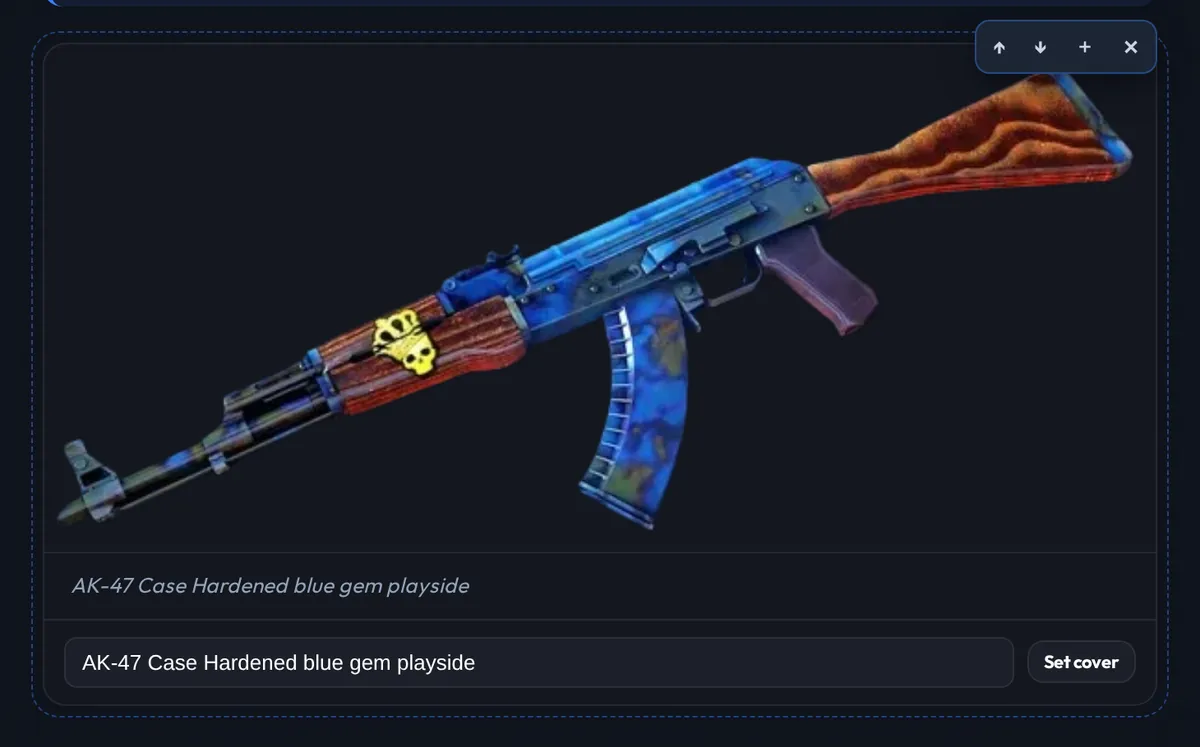
💡 Your own screenshots beat everything. No watermarked images from other sites.
★Key takeaways box
- Hover the block (tap it on a phone) — its toolbar appears top right, then click + — the new block lands below it → Key takeaways
- Write 3–5 short points — the whole blog in one glance
- Move it right under your intro with ↑
Live example — this is exactly how it looks on the blog
Key takeaways
- Seed 661 is the most famous AK blue gem
- Only the playside really decides the price
- Check any seed with its inspect link
±Pros & cons
- Hover the block (tap it on a phone) — its toolbar appears top right, then click + — the new block lands below it → Pros & cons
- Click into the Pros or Cons column and type
- Enter for the next point — empty column = hidden on the blog
Live example — this is exactly how it looks on the blog
Pros
- Huge collector demand
- Every seed is unique
Cons
- Very hard to price
- Fake screenshots
①Step-by-step
- Hover the block (tap it on a phone) — its toolbar appears top right, then click + — the new block lands below it → Step-by-step — 3 empty steps
- Each step: a short title + what to do
- Click a step, then +Step adds one below it, −Step removes it
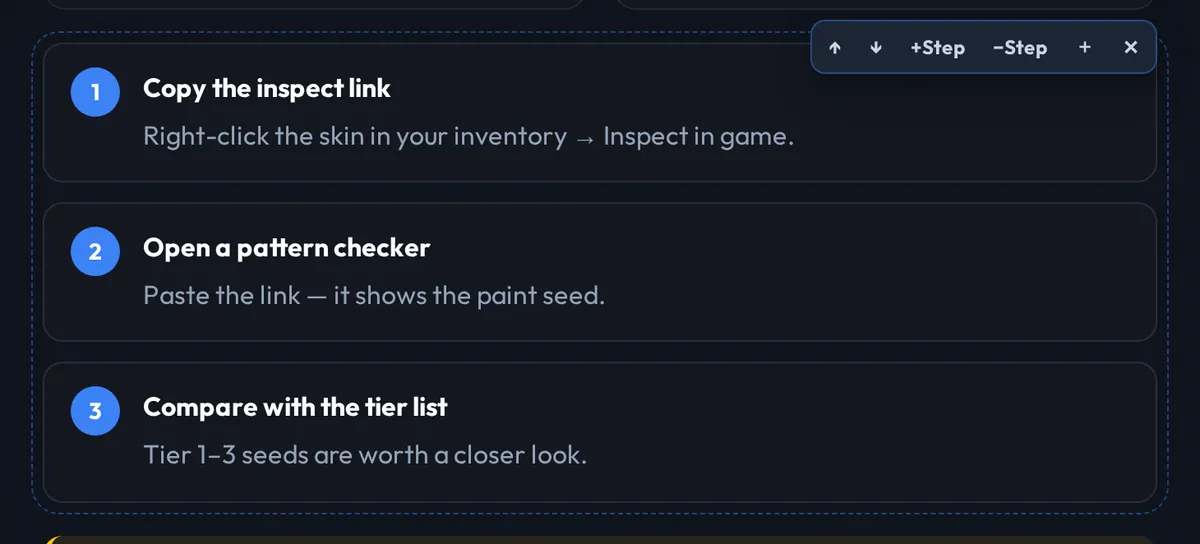
Live example — this is exactly how it looks on the blog
- Copy the inspect linkRight-click the skin → Inspect in game.
- Open a pattern checkerPaste the link — it shows the paint seed.
?FAQ (can show up in Google)
- Hover the block (tap it on a phone) — its toolbar appears top right, then click + — the new block lands below it → FAQ (shows in Google) — adds a "Frequently Asked Questions" heading + 3 questions
- Question = what people really type into Google. Answer = 2–4 short sentences
- Click a question, then +Q / −Q
- Put it at the end of your blog. Empty questions are dropped automatically
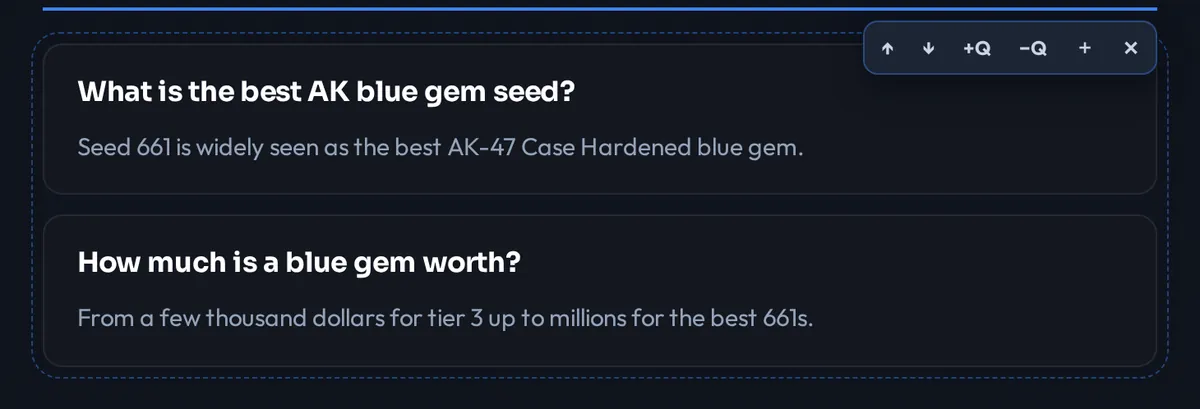
Live example — this is exactly how it looks on the blog
What is the best AK blue gem seed?
Seed 661 is widely seen as the best AK-47 Case Hardened blue gem.
How much is a blue gem worth?
From a few thousand dollars for tier 3 up to millions for the best 661s.
💡 We add special FAQ code to the page so Google can show your questions directly in the search results.
Left panel
📝Blog details
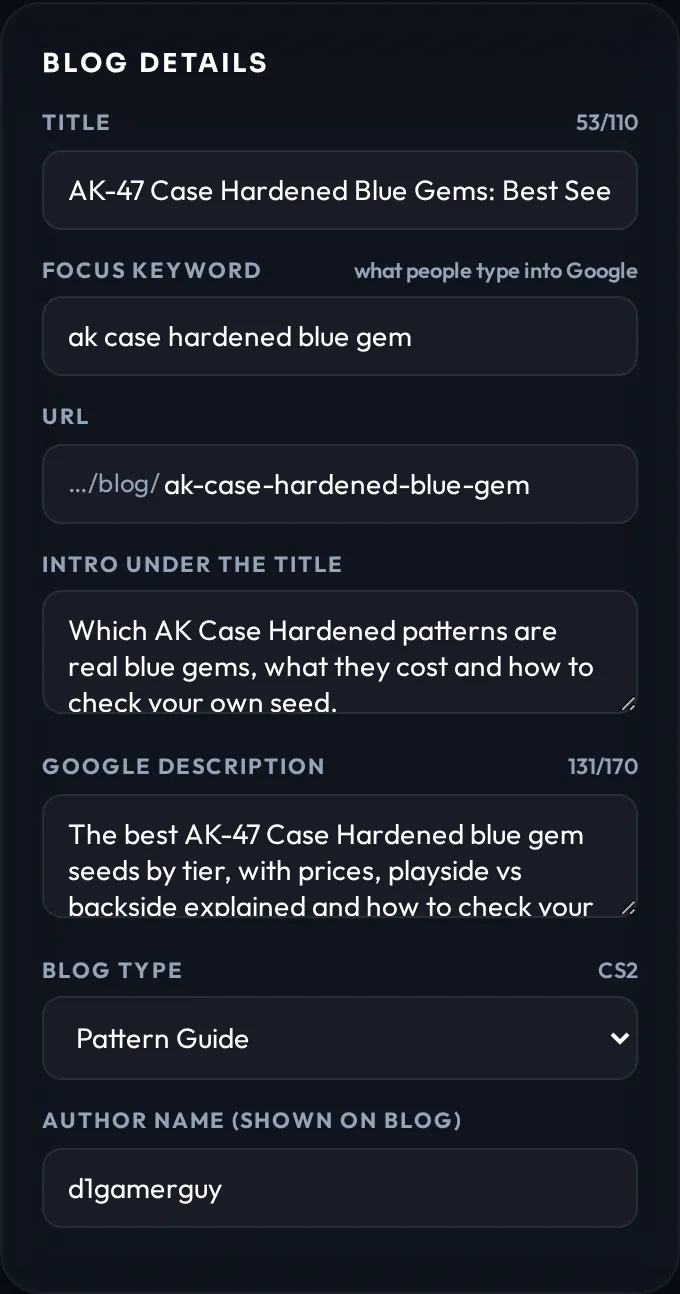
| Field | Tips |
|---|---|
| Title | 30–60 characters, with your keyword. "AK-47 Case Hardened Blue Gems: Best Seeds" beats "My AK thoughts". Also editable right in the preview. |
| Focus keyword | What people type into Google, e.g. ak case hardened blue gem. Unlocks the keyword checks. |
| URL | Empty = built from the title. Short, lowercase, with the keyword. |
| Intro | The line under the title — also editable in the preview. |
| Google description | 120–160 characters that make people click. Shown in Google + Discord previews. |
| Blog type | Guide, News, Pattern Guide… — decides the badge and where it's listed. |
| Author | Shown on the blog. A nickname is fine. |
🔎Google preview
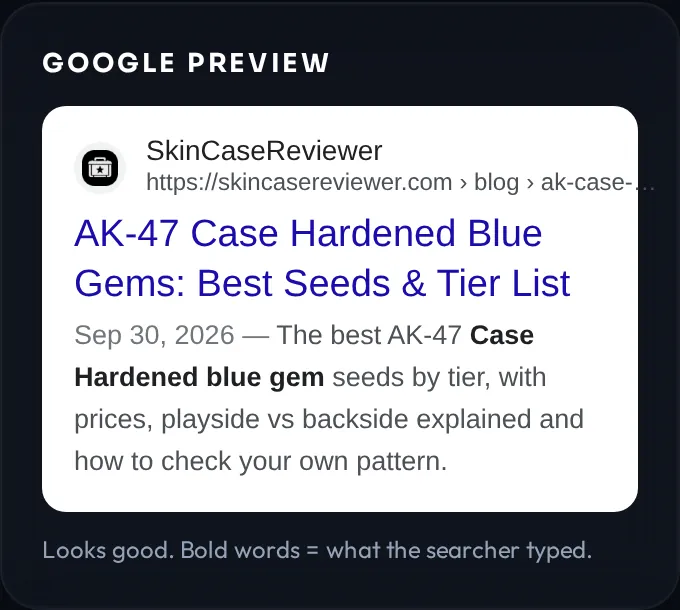
Shows your blog like a Google result. Title cut after ~60 characters, description after ~160 — shown with "…" here too. Bold words = your keyword, like Google does for the searcher.
No description? Google grabs random text from your blog — the note turns yellow.
🖼️Link preview banner
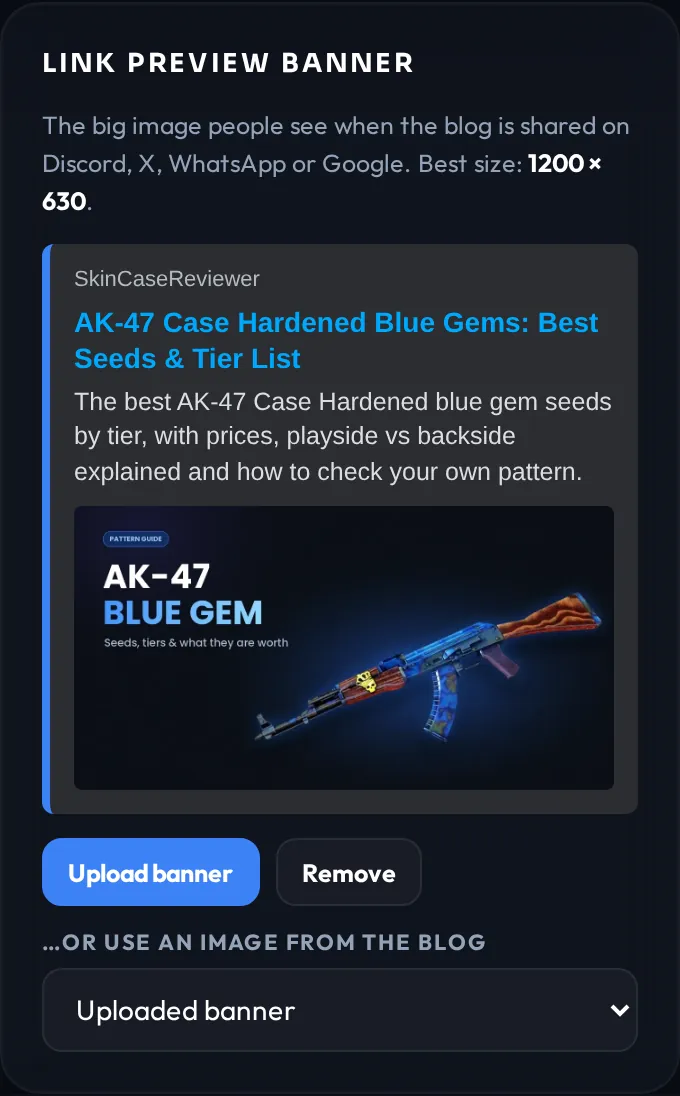
- Click Upload banner — best size 1200 × 630
- …or pick an image from your blog in the dropdown (or Set cover under the image)
- Remove = our logo is used
This is the big picture on Discord, X, WhatsApp and in our blog list.
🔫Hero images
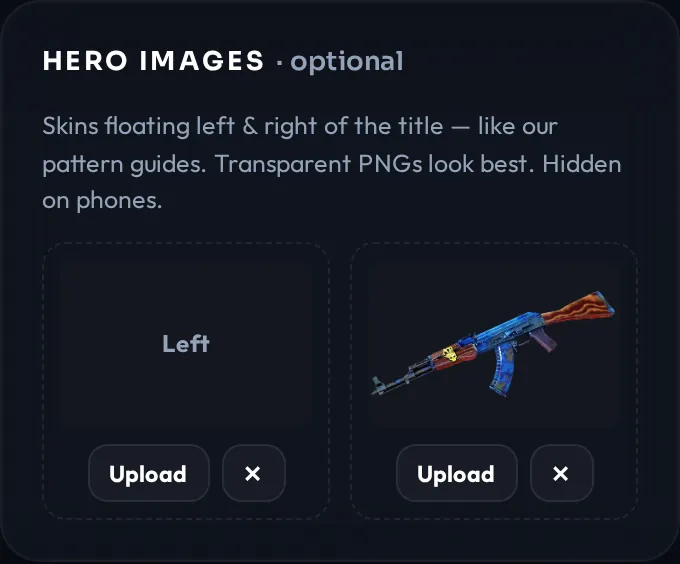
- Optional: Upload a skin for the Left and/or Right side of the title
- ✕ removes it
Transparent PNGs look best — like our pattern guides. Hidden on phones.
✅Ready to submit?
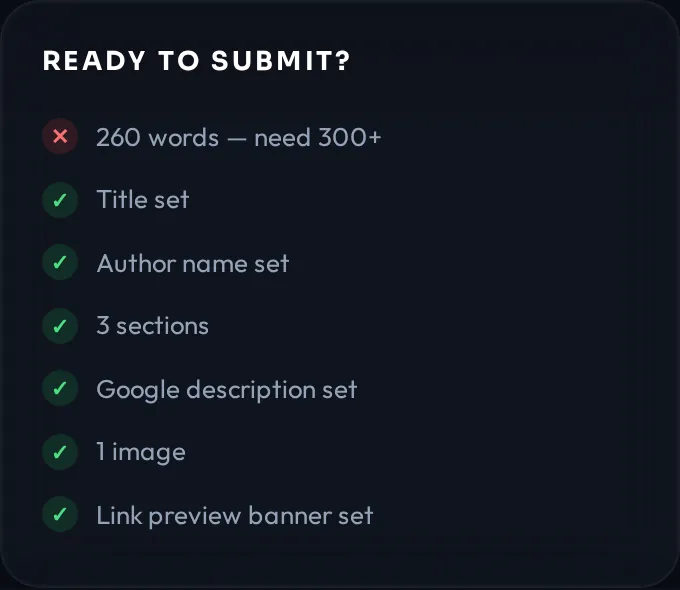
✕ red = must fix before sending (enough words, title, author). ! yellow = tips. ✓ green = done.
📈SEO checklist & one-click fixes
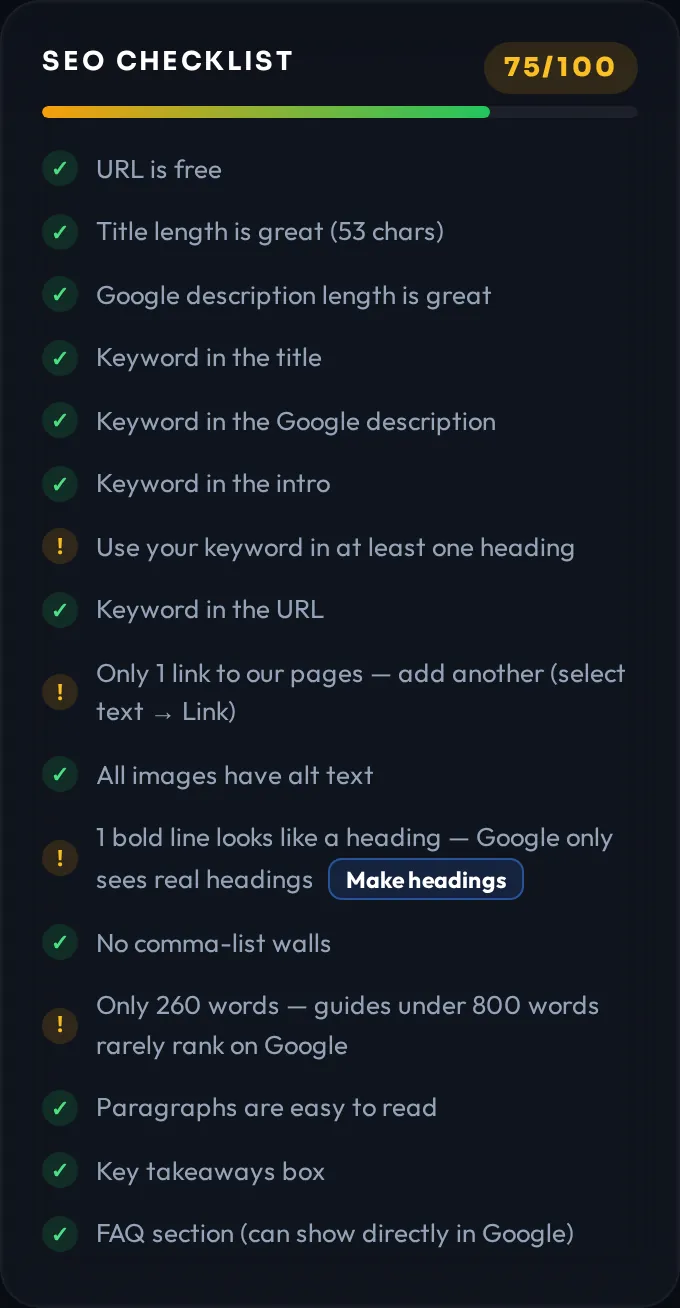
Your blog's Google score, updated live. Aim for 80+. Every ! says what to fix:
- Title / description length, URL free
- Keyword in title, description, intro, a heading and the URL
- 2+ links to our pages
- Images with descriptions
- Real headings — Make headings fixes bold "fake headings" in one click
- No comma-list walls — Make list
- 800+ words, no paragraphs over 150 words
- Key takeaways box and FAQ
Under 60 you get a friendly warning when you send it — with the top fixes and Fix first / Submit anyway.
🛠️Undo, add image, hide tools, new file
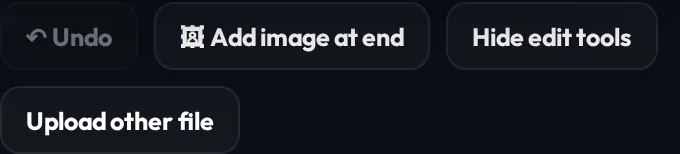
| ↶ Undo | Undo the last change — many steps back |
| 🖼 Add image at end | Adds an image as the last block |
| Hide edit tools | Shows the preview 100% like the live blog (click again to edit) |
| Upload other file | Starts over — your current draft is thrown away |
Preview & sending
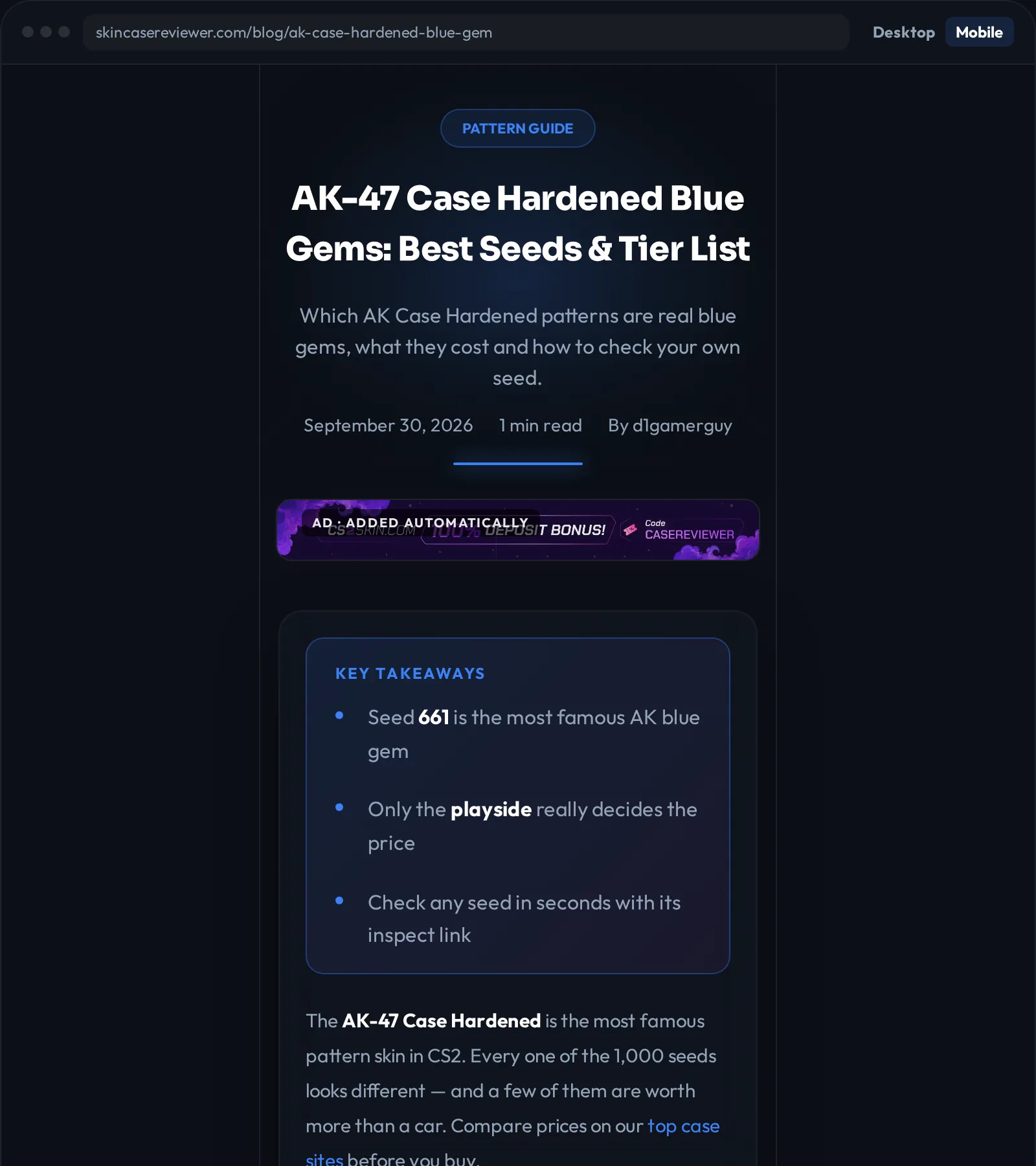
📱Desktop / mobile preview

Click Mobile to see it like on a phone — most readers are on phones. The ads marked "added automatically" are placed by us; you can't move them.
📨Send it in
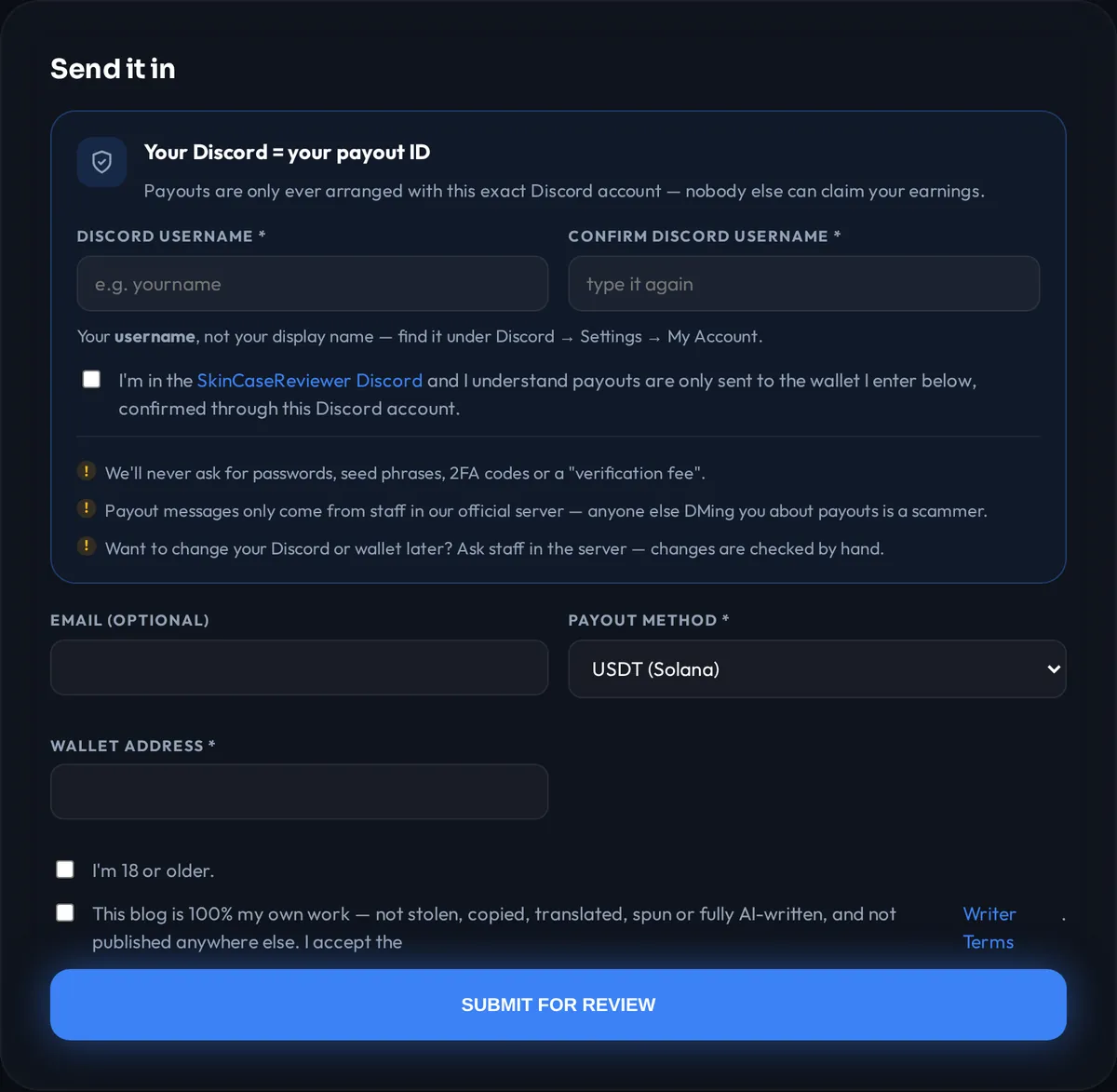
- Discord username twice (not the display name) — it's your payout ID
- Join our Discord and tick the box
- Payout method + wallet (double-check it)
- Tick 18+ and "my own work"
- Click Submit
💡 After submitting, log in to your dashboard with Discord to track it.
Cheat sheet
⌨️All keyboard shortcuts
| Keys | Does |
|---|---|
| Ctrl+B Ctrl+I Ctrl+U | Bold / italic / underline |
| Ctrl+K | Add a link |
| Enter | New paragraph / next bullet |
| Shift+Enter | Line break in the same block |
| Backspace | At the start of a paragraph: join with the block above |
| Ctrl+Z | Undo typing inside a block (the ↶ Undo button undoes block changes) |
| Esc | Close the link box / + menu |
| ↓ ↑ Enter | Pick a page in the link search |
On a Mac use ⌘ instead of Ctrl.
Nothing found for that — try another word, or ask in our Discord.